
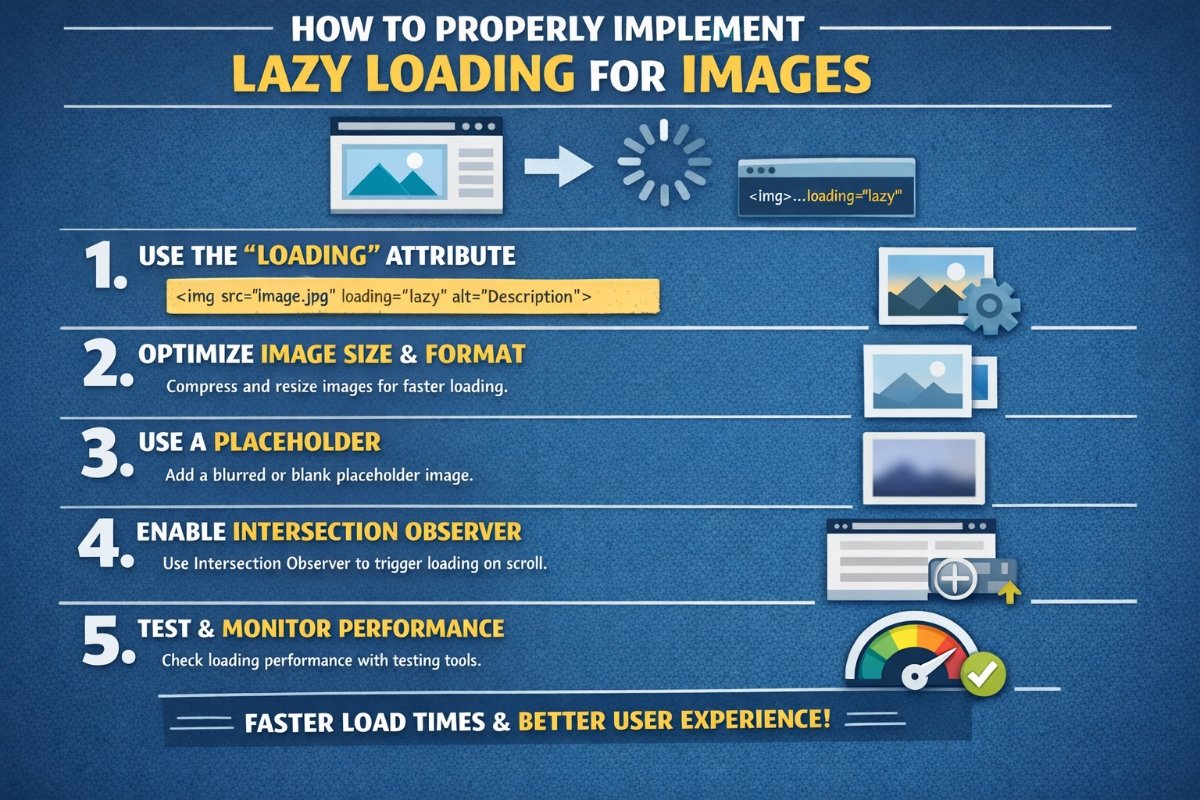
Lazy loading is one of the simplest ways to improve WordPress performance, but only when it is implemented correctly. When images and videos load only as users scroll, pages become faster, Core Web Vitals improve, and mobile visitors get a smoother experience, especially on slower networks.
This guide explains how to properly implement lazy loading for images and videos in WordPress without breaking layouts, harming SEO, or confusing search engines and AI crawlers. Whether your site serves a local audience or a global one, correct lazy loading helps reduce bandwidth usage, improve page speed scores, and ensure that important visual content is still discoverable by Google, voice assistants, and large language models.
Lazy loading is one of the most effective techniques for improving WordPress site performance. By deferring the loading of images and videos until they’re needed, you can dramatically reduce initial page load times, save bandwidth, and improve Core Web Vitals scores. In this comprehensive guide, we’ll explore how to properly implement lazy loading in WordPress.
What is Lazy Loading?
Lazy loading is a performance optimization technique that delays loading non-critical resources at page load time. Instead of loading all images and videos when the page first loads, lazy loading only loads media that’s visible in the user’s viewport. As users scroll down, additional images and videos load just before they come into view.
Key Benefits:
- Faster initial page load times
- Reduced bandwidth consumption
- Improved Core Web Vitals (especially LCP and CLS)
- Better user experience on slower connections
- Lower server load and hosting costs
Native WordPress Lazy Loading
Since WordPress 5.5, lazy loading has been built into the core platform. WordPress automatically adds the loading="lazy" attribute to images and iframes, which is supported by all modern browsers.
How Native Lazy Loading Works
When you upload images through the WordPress media library or embed videos using iframes, WordPress automatically adds the lazy loading attribute:
<img src="image.jpg" alt="Description" loading="lazy" />

<iframe src="video-embed.html" loading="lazy"></iframe>
This native implementation is simple and doesn’t require any JavaScript, making it lightweight and efficient.
Advanced Lazy Loading with Plugins
While native lazy loading is excellent, plugins offer more control and advanced features. Here are the best approaches:
1. Using a3 Lazy Load
This popular plugin provides comprehensive lazy loading options with extensive customization:
- Lazy load images, videos, and iframes
- Customizable loading effects and placeholders
- Mobile-specific settings
- Exclude specific images or pages
Installation:
- Navigate to Plugins → Add New in your WordPress dashboard
- Search for “a3 Lazy Load”
- Click Install Now and then Activate
- Go to Settings → a3 Lazy Load to configure options
2. Using WP Rocket (Premium)
WP Rocket is a comprehensive caching plugin that includes advanced lazy loading features:
- One-click lazy loading activation
- Automatic exclusion of above-the-fold images
- Native and YouTube iframe lazy loading
- Integration with other performance optimizations
Manual Implementation with Code
For developers who want complete control, you can implement lazy loading manually. Here’s how:
Method 1: Using JavaScript and Intersection Observer API
Add this code to your theme’s functions.php file:
function custom_lazy_load_script() {
    ?>
    <script>
    document.addEventListener("DOMContentLoaded", function() {
        const lazyImages = document.querySelectorAll('img[data-src]');

        const imageObserver = new IntersectionObserver((entries, observer) => {
            entries.forEach(entry => {
                if (entry.isIntersecting) {
                    const img = entry.target;
                    img.src = img.dataset.src;
                    img.classList.add('loaded');
                    observer.unobserve(img);
                }
            });
        });

        lazyImages.forEach(img => imageObserver.observe(img));
    });
    </script>
    <?php
}
add_action('wp_footer', 'custom_lazy_load_script');

// Add data-src attribute to images
function add_lazy_load_attributes($content) {
    $content = preg_replace(
        '/<img(.*?)src=/i',
        '<img$1data-src=',
        $content
    );
    return $content;
}
add_filter('the_content', 'add_lazy_load_attributes');
Method 2: Using the Loading Attribute Filter
To control which images should be lazy loaded, you can filter the loading attribute:
// Disable lazy loading for specific images
function disable_lazy_load_featured_images($value, $image, $context) {
    if ('the_post_thumbnail' === $context) {
        return false; // Disable lazy loading for featured images
    }
    return $value;
}
add_filter('wp_lazy_loading_enabled', 'disable_lazy_load_featured_images', 10, 3);
Implementing Lazy Loading for Videos
Videos require special attention because they’re typically larger files. Here’s how to lazy load different types of video content:
YouTube and Vimeo Embeds
Replace standard embeds with lazy-loaded versions using a facade technique:
// Add to functions.php
function lazy_load_youtube_embeds($content) {
    if (strpos($content, 'youtube.com/embed') !== false) {
        $content = preg_replace(
            '/<iframe.*?src="(.*?youtube\.com\/embed\/([^"?]+)).*?<\/iframe>/i',
            '<div class="youtube-lazy" data-id="$2">
                <img src="https://img.youtube.com/vi/$2/hqdefault.jpg" alt="YouTube Video">
                <button class="play-button">Play</button>
            </div>',
            $content
        );
    }
    return $content;
}
add_filter('the_content', 'lazy_load_youtube_embeds');
Self-Hosted Videos
For self-hosted videos, add the preload attribute:
<video controls preload="none" poster="thumbnail.jpg">
    <source src="video.mp4" type="video/mp4">
</video>Best Practices for Lazy Loading
1. Don’t Lazy Load Above-the-Fold Images
Images that appear in the initial viewport should load immediately. Lazy loading these images can hurt your Largest Contentful Paint (LCP) score.
// Exclude first image from lazy loading
function exclude_first_image_from_lazy_load($content) {
    static $first_image = true;
    if ($first_image && preg_match('/<img/', $content)) {
        $content = preg_replace('/loading="lazy"/', '', $content, 1);
        $first_image = false;
    }
    return $content;
}
add_filter('the_content', 'exclude_first_image_from_lazy_load', 20);
2. Use Low-Quality Image Placeholders (LQIP)
Display a blurred, low-resolution version while the full image loads:
<img src="image-placeholder-tiny.jpg"
     data-src="image-full.jpg"
     class="lazy-image blur-up"
     alt="Description" />
3. Set Width and Height Attributes
Always specify dimensions to prevent layout shifts (CLS):
<img src="image.jpg"
     width="800"
     height="600"
     loading="lazy"
     alt="Description" />
4. Test on Real Devices
Lazy loading behavior can vary across devices and connection speeds. Test your implementation on:
- Mobile devices with slow 3G connections
- Different browsers (Chrome, Safari, Firefox, Edge)
- Various screen sizes and resolutions
5. Monitor Performance Metrics
Track the impact of lazy loading using:
- Google PageSpeed Insights
- Chrome DevTools Performance tab
- WebPageTest
- Google Search Console Core Web Vitals report
Common Issues and Solutions
Issue 1: Images Not Loading
Solution: Check for JavaScript errors and ensure the Intersection Observer API is supported. Add a fallback for older browsers.
Issue 2: Layout Shifts (High CLS)
Solution: Always define image dimensions and use aspect ratio boxes for responsive images.
Issue 3: SEO Concerns
Solution: Modern lazy loading techniques are fully compatible with search engine crawlers. Google’s bots can render JavaScript and process lazy-loaded images correctly.
Issue 4: Slow Scrolling Performance
Solution: Adjust the intersection observer threshold to load images earlier before they enter the viewport.
Testing Your Implementation
After implementing lazy loading, verify it’s working correctly:
- Visual Inspection: Open Chrome DevTools, go to Network tab, and scroll through your page. You should see images loading as you scroll.
- Disable JavaScript: Ensure images still load (for accessibility and SEO).
- Check Attributes: Inspect your images to confirm the
loading="lazy"attribute is present. - Performance Testing: Run before-and-after tests using PageSpeed Insights or GTmetrix.
Recommended Plugin Combinations
For optimal results, consider these plugin combinations:
- Budget Option: Native WordPress + a3 Lazy Load
- Intermediate: WP Rocket + Native lazy loading
- Advanced: Custom code + Perfmatters + ShortPixel Adaptive Images
Conclusion
Lazy loading is a powerful optimization technique that can significantly improve your WordPress site’s performance. Start with WordPress’s native lazy loading for a quick win, then consider plugins or custom implementations for more control. Remember to exclude above-the-fold images, test thoroughly across devices, and monitor your Core Web Vitals to ensure you’re achieving the desired improvements.
By following the best practices outlined in this guide, you can reduce page load times by up to 50%, improve user experience, and boost your search engine rankings. Start implementing lazy loading today and watch your WordPress site performance soar!