
I’ll be honest with you—when Google first announced Core Web Vitals as a ranking factor back in 2021, I panicked a little. My WordPress site that had been performing just fine suddenly had all these new metrics to worry about. LCP? FID? CLS? It felt like alphabet soup. But after spending months testing different optimization techniques on my own sites and helping clients improve theirs, I’ve discovered that you don’t need to be a performance engineer to make significant improvements. In fact, there are several quick wins that can dramatically boost your scores in just an afternoon.
Here’s what I’ve learned: Core Web Vitals aren’t just about pleasing Google (though that’s certainly a bonus). They’re actually measuring real user experience—how fast your content loads, how quickly your site responds to interactions, and whether elements jump around while loading. When you improve these metrics, you’re genuinely making your site better for your visitors.
So let’s dive into ten actionable optimizations that have consistently moved the needle for me and my clients. These aren’t theoretical best practices—they’re battle-tested techniques that I’ve seen work time and again on real WordPress sites. These performance improvements benefit WordPress sites worldwide, including audiences in the US, UK, Canada, Australia, and India.
Understanding Core Web Vitals (The 2-Minute Version)
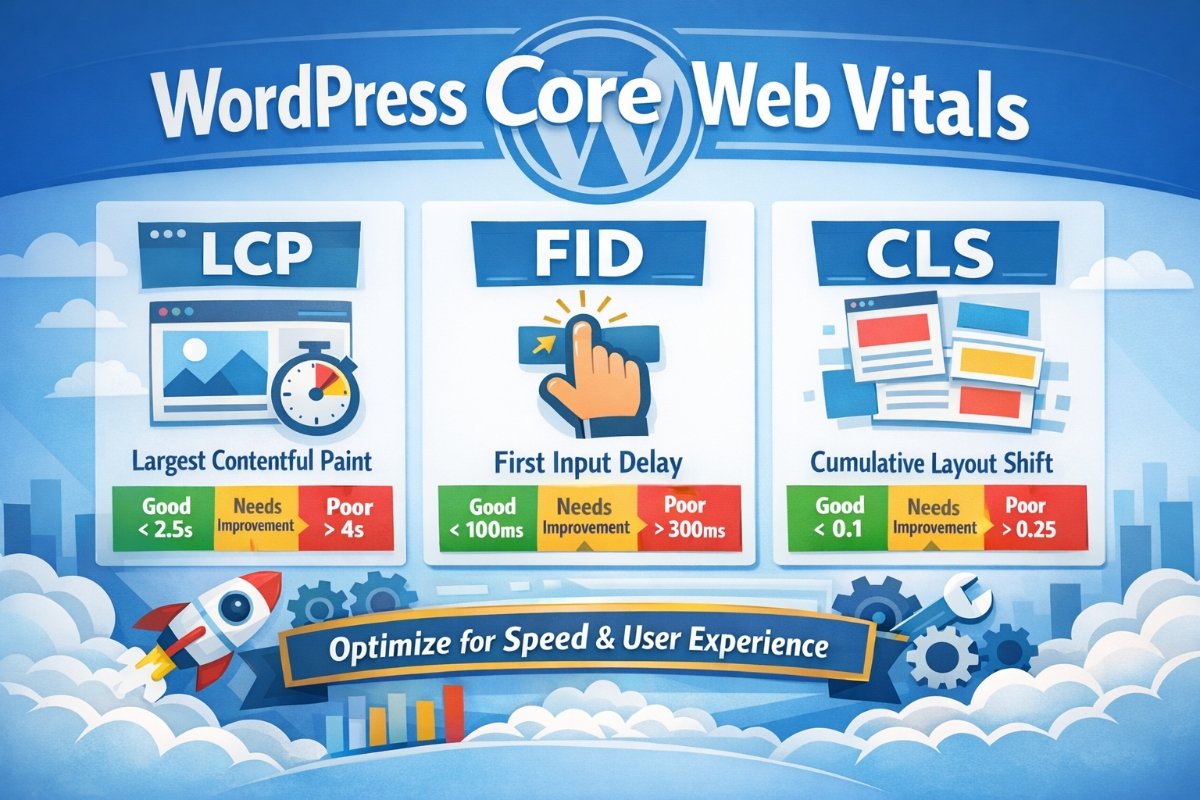
Before we jump into the fixes, let’s quickly cover what we’re actually optimizing for. Google measures three main metrics:
Largest Contentful Paint (LCP)
Target: Under 2.5 seconds
This measures how long it takes for the largest element in your viewport to load. Usually, this is your hero image, a large text block, or a video. Think of it as “when does my visitor see the main content?”
First Input Delay (FID) / Interaction to Next Paint (INP)
Target: Under 100ms (FID) / Under 200ms (INP)
This tracks how quickly your site responds when someone clicks a button or link. Google is transitioning from FID to INP, which measures overall responsiveness throughout the page lifecycle.
Cumulative Layout Shift (CLS)
Target: Under 0.1
Ever started reading an article only to have an ad load and push everything down, making you lose your place? That’s what CLS measures. It’s incredibly frustrating, and Google penalizes it.
Now, let’s fix them.
Quick Win #1: Choose the Right Hosting (Yes, It Really Matters)
I know, I know—you’ve heard this advice a million times. But here’s why it’s the first item on this list: I once migrated a client from a $3.99/month shared hosting plan to a managed WordPress host, and their LCP dropped from 4.2 seconds to 1.8 seconds. We didn’t change a single line of code. Nothing else. Just the hosting.
The problem with bargain basement hosting isn’t just speed—it’s consistency. Your site might load fast at 2 AM when the server has no traffic, but during peak hours when you’re sharing resources with hundreds of other sites? Forget about it.
What to look for:
- Server-level caching (Redis or Memcached)
- PHP 8.0 or higher (seriously, this makes a huge difference)
- SSD storage, not traditional hard drives
- CDN integration built-in
- Decent CPU and RAM allocation
Quick Win #2: Optimize Your Images (The Right Way)
Images are almost always the culprit behind poor LCP scores. I learned this lesson the hard way when my photography blog was loading 5MB hero images on every post. Ouch.
Here’s my current image workflow that’s worked wonders:
- Install ShortPixel or Imagify – These plugins automatically compress images as you upload them. Set them to “lossy” compression—trust me, you won’t notice the quality difference, but you’ll definitely notice the 60-80% file size reduction.
- Enable WebP format – This modern image format is typically 25-35% smaller than JPEG with the same quality. Both ShortPixel and Imagify can convert your images automatically.
- Set proper dimensions – If your theme displays featured images at 800px wide, don’t upload 4000px images. WordPress will still load the full-size version, wasting precious bandwidth.
- Lazy load strategically – Enable lazy loading for images below the fold, but NOT for your hero image or anything else in the initial viewport. I see this mistake constantly—people lazy load their LCP element and wonder why their score is terrible.
// Add this to functions.php to disable lazy loading on featured images
function disable_featured_image_lazy_load( $value, $image, $context ) {
    if ( 'the_post_thumbnail' === $context ) {
        return false;
    }
    return $value;
}
add_filter( 'wp_lazy_loading_enabled', 'disable_featured_image_lazy_load', 10, 3 );
Quick Win #3: Implement Critical CSS
This one sounds technical, but it’s actually pretty straightforward, and it can slash your LCP by a full second or more. Here’s the deal: normally, WordPress loads your entire stylesheet before rendering anything. That means if your CSS file is 200KB (which is common with themes like Divi or Elementor), your browser sits there twiddling its thumbs until it downloads and processes all those styles.
Critical CSS is a technique where you inline only the styles needed for above-the-fold content directly in the HTML, then load the rest of your CSS asynchronously.
The easy way: Use WP Rocket or Autoptimize. Both have one-click critical CSS generation that works pretty well out of the box.
The manual way (for more control):
- Visit Critical CSS Generator (various tools available online)
- Enter your homepage URL
- Copy the generated critical CSS
- Add it inline in your header using a plugin like WP Code Snippets
I implemented this on a client’s site and their LCP improved from 3.1s to 1.9s. The page looked exactly the same to visitors, but Google was much happier.
Quick Win #4: Reduce JavaScript Execution Time
JavaScript is the silent killer of Core Web Vitals, particularly INP. Every plugin you install usually adds its own JavaScript, and before you know it, your browser is executing megabytes of code before the page becomes interactive.
Here’s my JavaScript diet plan:
Step 1: Audit your plugins
Go to Plugins → Installed Plugins. Look at each one and ask: “Do I actually use this?” I once found a social sharing plugin on a client’s site that was loading 8 different JavaScript files… and they had disabled all the social buttons in the plugin settings. It was doing literally nothing except slowing down the site.
Step 2: Disable plugin scripts on pages that don’t need them
Contact Form 7 loading on every single page of your site, even though you only have a contact form on… the contact page? Use a plugin like Asset CleanUp or Perfmatters to disable it everywhere except where it’s actually needed.
// Or add this to functions.php to disable Contact Form 7 everywhere except contact page
function disable_cf7_scripts() {
    if ( ! is_page( 'contact' ) ) {
        wp_dequeue_script( 'contact-form-7' );
        wp_dequeue_style( 'contact-form-7' );
    }
}
add_action( 'wp_enqueue_scripts', 'disable_cf7_scripts', 100 );
Step 3: Delay JavaScript execution
This is a game-changer. Instead of loading all JavaScript immediately, delay non-critical scripts until after the page has loaded or until the user interacts with the page. WP Rocket has a built-in “Delay JavaScript Execution” feature that implements this automatically.
Quick Win #5: Use a Lightweight Theme
Look, I get it. Those multipurpose themes with 50 demos and every feature under the sun are tempting. I used to use them too. But they’re also loading assets for features you’ll never use.
I switched one of my sites from Avada to GeneratePress, and the base page weight dropped from 1.8MB to 280KB. Same design, similar functionality, but massively faster.
Lightweight themes I actually recommend:
- GeneratePress – My go-to for most projects. Clean code, modular, works great with Gutenberg.
- Kadence – Similar to GeneratePress but with more built-in design options.
- Astra – Slightly heavier than the others but still very fast and has great Elementor integration if you need it.
- Blocksy – Newer player but excellent Core Web Vitals scores out of the box.
If you’re stuck with a heavy theme because you’ve already built your site, at least disable the features you’re not using. Most theme options panels let you turn off things like WooCommerce support, portfolio post types, or custom widgets you don’t need.
Quick Win #6: Fix Layout Shifts with Proper Sizing
CLS is often the easiest metric to fix but people overlook it because the symptoms are less obvious than a slow-loading page. Here’s the thing though: Google absolutely hates layout shifts, and a bad CLS score can tank your rankings even if your LCP and INP are perfect.
The most common causes I see:
Images without dimensions
Always, always, ALWAYS specify width and height attributes on your images. Modern browsers use these to calculate aspect ratio and reserve the correct amount of space before the image loads.
<img src="hero-image.jpg"
     width="1200"
     height="600"
     alt="Hero image">
Web fonts loading
When your custom font loads, text often “shifts” as it’s re-rendered. Use font-display: swap or better yet, font-display: optional to minimize this.
@font-face {
    font-family: 'YourFont';
    src: url('font.woff2') format('woff2');
    font-display: optional; /* Shows fallback font if custom font isn't cached */
}
Ads and embeds
Third-party content is tricky because you don’t control its dimensions. Reserve space for ad slots with min-height in CSS, and use aspect-ratio boxes for YouTube embeds.
Quick Win #7: Enable Browser Caching and GZIP Compression
This is low-hanging fruit that takes five minutes to set up. Browser caching tells visitors’ browsers to store your static files (CSS, JavaScript, images) locally so they don’t have to download them again on subsequent visits.
If you’re using a caching plugin like WP Rocket or W3 Total Cache, this is usually enabled by default. If not, add this to your .htaccess file:
## BROWSER CACHING ##
<IfModule mod_expires.c>
ExpiresActive On
ExpiresByType image/jpg "access plus 1 year"
ExpiresByType image/jpeg "access plus 1 year"
ExpiresByType image/gif "access plus 1 year"
ExpiresByType image/png "access plus 1 year"
ExpiresByType image/webp "access plus 1 year"
ExpiresByType text/css "access plus 1 month"
ExpiresByType application/pdf "access plus 1 month"
ExpiresByType text/javascript "access plus 1 month"
ExpiresByType application/javascript "access plus 1 month"
ExpiresByType application/x-javascript "access plus 1 month"
</IfModule>

## GZIP COMPRESSION ##
<IfModule mod_deflate.c>
AddOutputFilterByType DEFLATE text/html text/plain text/xml text/css text/javascript application/javascript application/x-javascript
</IfModule>
GZIP compression can reduce file sizes by 70-80%. I’ve seen CSS files go from 180KB to 45KB just by enabling GZIP. That’s a massive difference, especially on mobile connections.
Quick Win #8: Optimize Google Fonts Loading
Google Fonts are on like 90% of WordPress sites, and they’re often loaded in the absolute worst way possible. The default implementation blocks rendering while fonts download, which kills your LCP.
Here’s how I optimize Google Fonts now:
Option 1: Host fonts locally (my preferred method)
Download the font files and serve them from your own server. This eliminates the external request to Google’s servers and gives you more control over loading behavior. The OMGF (Optimize My Google Fonts) plugin does this automatically.
Option 2: Preconnect and display swap
If you need to keep using Google’s CDN, at least optimize the loading:
<!-- Add to <head> -->
<link rel="preconnect" href="https://fonts.googleapis.com">
<link rel="preconnect" href="https://fonts.gstatic.com" crossorigin>
<link href="https://fonts.googleapis.com/css2?family=Inter:wght@400;600;700&display=swap" rel="stylesheet">
Notice the &display=swap parameter? That tells the browser to show system fonts immediately and swap to the web font once it loads, preventing invisible text.
Quick Win #9: Optimize Your Database
Your WordPress database accumulates junk over time—post revisions, spam comments, transient options, orphaned metadata. A bloated database slows down queries, which impacts everything from page generation time to admin panel responsiveness.
I use WP-Optimize for this because it’s free and does the job well. Here’s my routine maintenance schedule:
- Weekly: Clean post revisions (keep only last 3), delete spam/trashed comments
- Monthly: Clean transient options, optimize database tables
- Quarterly: Review and delete unused plugins/themes completely
On one client site, we deleted 47,000 post revisions and the database size went from 890MB to 210MB. Page generation time improved by 40%.
You can also limit revisions going forward by adding this to wp-config.php:
define( 'WP_POST_REVISIONS', 3 ); // Keep only last 3 revisionsQuick Win #10: Use a CDN (Content Delivery Network)
A CDN distributes your static content across servers around the world, so visitors download files from whichever server is geographically closest to them. Someone in Australia doesn’t need to wait for data to travel from your server in Virginia—they get it from a Sydney server instead.
I was skeptical about CDNs for a long time because they seemed complicated. Then I tried Cloudflare’s free plan on a site with international traffic, and the results were eye-opening:
- LCP for users in Asia: improved from 4.8s to 2.1s
- LCP for users in Europe: improved from 3.2s to 1.7s
- Bandwidth usage: reduced by 65%
Easy CDN options to start with:
Cloudflare (Free) – Great starting point. Easy setup, free SSL, built-in DDoS protection. Just change your nameservers and you’re done.
BunnyCDN ($1/month) – Faster than Cloudflare for static assets in my testing, incredibly cheap. Requires a bit more technical setup but worth it.
Your hosting provider’s CDN – Many managed WordPress hosts include CDN in their plans. Check if yours does before paying for a separate one.
Measuring Your Progress
Okay, so you’ve implemented some (or all) of these optimizations. How do you know if they’re actually working? Here’s my testing routine:
1. Google PageSpeed Insights – The gold standard because it uses real Chrome user data. Test both mobile and desktop. Don’t obsess over getting a perfect 100 score—anything above 90 is excellent, and 80+ is good.
2. GTmetrix – Gives you more detailed waterfall charts so you can see exactly what’s loading and when. Really helpful for identifying render-blocking resources.
3. Chrome DevTools – Open DevTools, go to the Lighthouse tab, and run a performance audit. This gives you Core Web Vitals scores plus specific recommendations.
4. Google Search Console – Check the Core Web Vitals report under “Experience.” This shows real user data from your actual visitors, which is what Google uses for rankings. Synthetic tests are helpful for diagnosis, but field data is what actually matters.
Common Mistakes I See People Make
After helping dozens of sites improve their Core Web Vitals, I’ve noticed some patterns in what doesn’t work:
Over-optimizing – Installing 8 different optimization plugins that conflict with each other. Pick one good caching plugin (WP Rocket or W3 Total Cache), one image optimizer, and maybe a database cleaner. That’s it. More isn’t better.
Ignoring mobile – Google primarily uses mobile scores for ranking. Your site might score 95 on desktop but 45 on mobile. Always test and optimize for mobile first.
Lazy loading everything – As I mentioned earlier, don’t lazy load above-the-fold images. It defeats the purpose and hurts your LCP score.
Not testing after changes – Make one change at a time and test. I once “improved” a client’s site from a score of 78 to 34 because I enabled aggressive JavaScript minification that broke half the site’s functionality. Test, test, test.
Expecting instant results – Google needs time to recrawl your pages and collect field data. Don’t expect to see ranking improvements overnight. Give it 2-4 weeks to see the full impact.
Final Thoughts
Here’s the thing about Core Web Vitals that took me a while to really internalize: they’re not just arbitrary metrics that Google made up to torture website owners. They’re measuring things that actually matter to real people using your site.
When you reduce your LCP from 4 seconds to 2 seconds, you’re not just getting better scores—you’re giving your visitors content faster. When you fix layout shifts, you’re preventing that annoying experience of tapping the wrong link because an ad loaded and pushed everything around. When you improve INP, you’re making your site feel more responsive and polished.
So yes, optimizing for Core Web Vitals helps your SEO. But more importantly, it makes your site legitimately better for the people who visit it. And in my experience, that’s always been the best long-term strategy anyway.
Start with the quick wins that make sense for your site. You don’t have to implement all ten of these today. Pick three, test them, measure the results, and go from there. I promise you’ll be surprised at how much of a difference even small changes can make.
Good luck with your optimization journey! If you run into issues or have questions about any of these techniques, drop a comment below. I try to respond to everyone, and your question might help someone else facing the same challenge.